
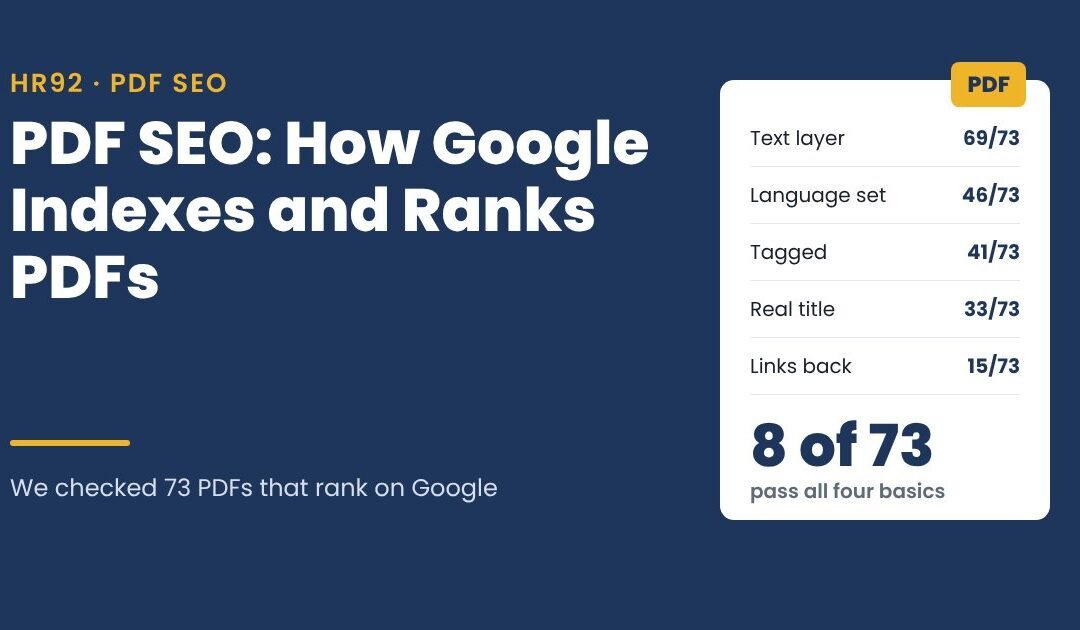

| PDF SEO check | Why it matters | 73 ranking PDFs we checked |
|---|---|---|
| Selectable text layer | Google indexes the text it extracts when it converts the PDF to HTML | 69 of 73 |
| Language declared | Tells readers, screen readers and parsers what language the text is in | 46 of 73 |
| Tagged PDF | Gives the text a reading order and structure for assistive tech | 41 of 73 |
| Descriptive title property | Google used it as the result title for 32 of 43 PDFs that had one | 33 of 73 |
| Link back to your own site | Google follows links in PDFs, and it’s the only way a reader gets from the PDF to your site | 15 of 73 |
| File under 64 MB | Googlebot crawls the first 64 MB of a PDF | 73 of 73 |
Google’s Martin Splitt and John Mueller spent a whole Search Off the Record episode on PDFs on October 13, 2026. The short version: PDFs can rank in Search, AI Overviews and AI Mode, and HTML is still the better format when you have the choice.
I wanted to see what that looks like in practice, so I pulled 73 PDFs that rank on Google for everyday business searches (menus, price lists, catalogs, brochures, patient forms) and checked each one. Below is what Google says, what we found, a free checker you can run on your own PDFs, and when a PDF is worth optimizing at all.
- Google converts PDFs into HTML before indexing, crawls the first 64 MB of each file, and treats indexable PDFs like other documents for ranking and AI features.
- Only 8 of the 73 ranking PDFs we checked had all four basics: a descriptive title, tags, a declared language and a clickable link.
- Google used the PDF’s title property as the result title 32 times out of 43. With no title set, it used text from the PDF or the bare file name.
- Google showed menu text in the snippets of two menus that had no selectable text at all. Useful to know, risky to rely on.
How does Google index PDFs?
Google indexes a PDF by converting it into an HTML version during indexing, then processing that HTML like any other page. The episode notes describe it as “Google’s PDF converter pipeline,” which turns the binary PDF container into HTML “so the rest of the pipeline can process them normally.”
Three documented facts follow from that:
- PDF is an officially supported file type. Google’s list of indexable file types puts Adobe Portable Document Format (.pdf) under “supported encoded file types,” which need a specific parser to extract the text.
- There is a size limit, and it’s large. Google’s Googlebot documentation says it crawls “the first 2MB of a supported file type, and the first 64MB of a PDF file.” Anything past 64 MB may never be seen.
- Links inside PDFs count. Because the PDF becomes HTML, the links in it can be extracted and followed. The episode has a chapter on “extracting images and links from PDF files.”
Images embedded in a PDF are less clear. In Search Engine Journal’s write-up of the episode, Splitt is reported as unsure whether embedded images get processed like normal images, since they have no URL of their own. If an image matters for image search, put it on an HTML page.
Do PDFs rank in Google and AI Overviews?
Yes. An indexable PDF can rank in regular results, AI Overviews and AI Mode, because it enters the same index as an HTML page. The episode summary covers “how PDFs are parsed, ranked, and referenced in Google Search, AI Overviews, and broader AI systems for training and grounding.”
Google’s AI features documentation sets the same bar for every format: a page must be “indexed and eligible to be shown in Google Search with a snippet,” and “there are no additional technical requirements.” There is no special PDF markup for AI answers.
Google’s own conclusion in the episode notes is balanced: “HTML is preferred, and PDFs work.” HTML reflows on a phone, zooms properly and loads faster. A PDF locks the layout to paper.
What we found in 73 ranking PDFs
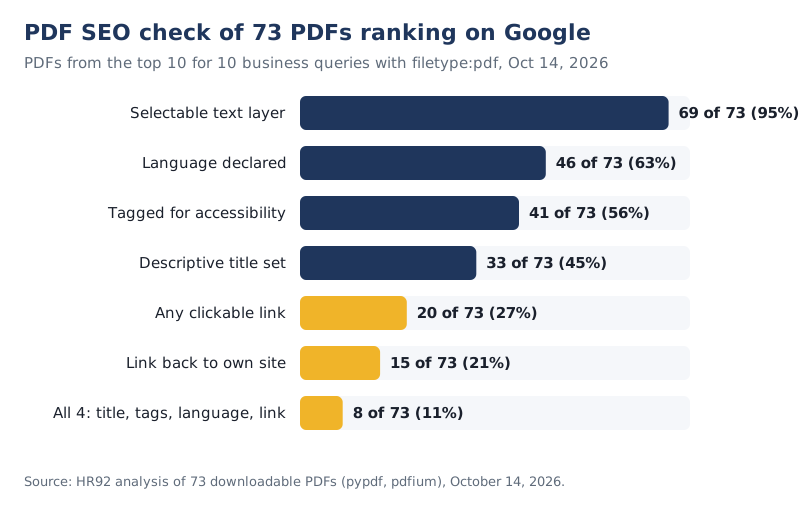
Most PDFs that rank on Google skip the basics. Of 73 PDFs from the top 10 for ten business searches, 45 percent had a descriptive title, 27 percent had a single clickable link, and only 11 percent passed all four basic checks.
How we did it. On October 14, 2026, I searched Google (US English, from a logged-in Chrome profile, so results lean toward Miami) for ten queries a typical client might publish a PDF for, each with filetype:pdf: restaurant dinner menu, Miami restaurant menu, product catalog, services price list, product spec sheet, company profile brochure, hotel brochure, real estate listing brochure, dental new patient forms and law firm practice brochure.
That gave 83 PDF results. 73 downloaded and opened cleanly; the rest returned errors (mostly 403 Forbidden) or timed out. We read each file with two open-source PDF libraries (pypdf for properties and links, pdfium for text) and compared Google’s result titles with each file’s metadata.
What stood out:
- Titles are the most common miss. 28 PDFs had no title property at all and 12 more had a leftover label such as “Layout 1,” “PowerPoint Presentation,” a design-file name or a print size. That leaves 33 of 73 with a title a person would write.
- PDFs are dead ends. 53 of 73 had no clickable link anywhere. None of the 16 restaurant menus linked to anything: no reservation page, no homepage, no phone link.
- Size wasn’t the problem. The median file was 0.7 MB. Nine were over 10 MB and the largest was 46.8 MB, so every file sat under Google’s 64 MB crawl limit. Heavy files are still a phone problem.
- Server controls were absent. None of the 73 sent an X-Robots-Tag or a canonical header. That’s fine for a file that should rank, but it’s also why duplicate copies of the same brochure float around.
These PDFs rank despite the gaps, mostly because filetype:pdf searches have little competition. The point isn’t that the basics don’t matter. It’s that the bar is low, and a PDF with a real title, language, tags and a link back is ahead of almost everything it competes with.
Where Google gets a PDF’s title
Google usually takes a PDF’s search result title from the document’s title property when one is set. In our check, 32 of 43 PDFs with a title property showed it, or a trimmed version of it, as the result title. Google’s title link documentation doesn’t mention PDFs; it lists sources like the main visual title and headings.
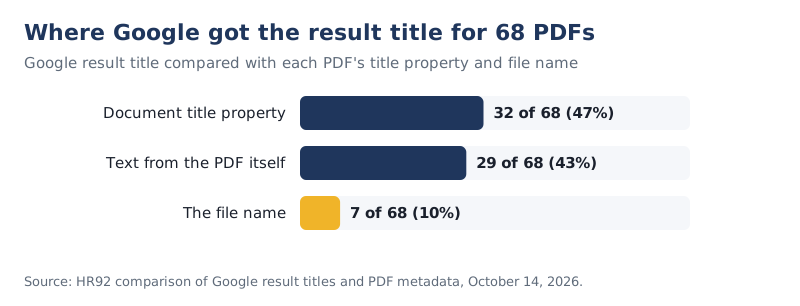
When there was no title property, Google picked text from the PDF itself (often the biggest heading, like “PRODUCT CATALOG” or “ENTRÉES”) 20 times, and showed the raw file name, extension included, 5 times.
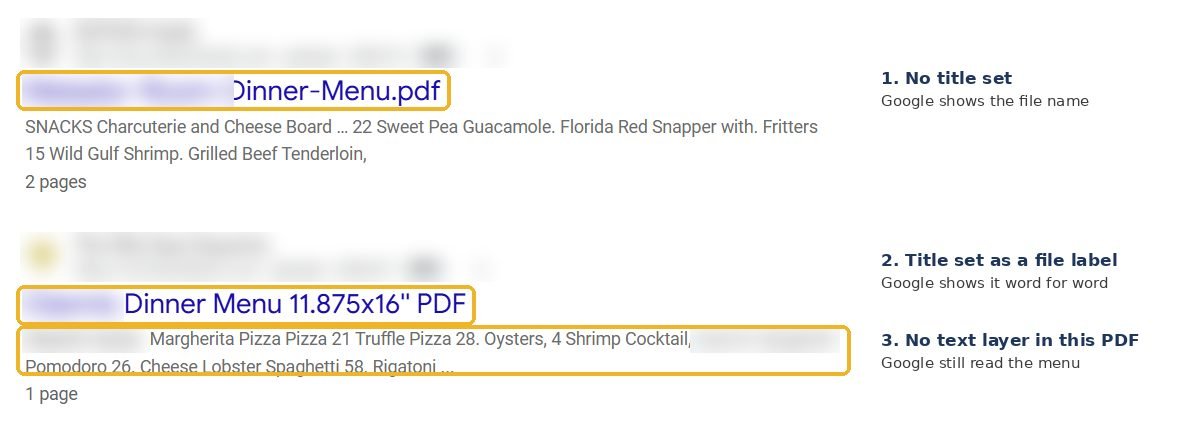
The title property cuts both ways. Google displayed labels like “2024 … MENU 11×17 final” and “New Patient Welcome Paperwork (1).odt” word for word, because that’s what the designer’s software wrote into the file. Whatever sits in that field may be your headline in search.
Scanned and image-only PDFs
An image-only PDF is a file whose pages are pictures of text, like a scan or a design export with the type converted to shapes. Google’s advice is to avoid them: the episode notes say rasterized pages “destroy text readability, ruin screen reader accessibility, and prevent Google from extracting text content,” and suggest a simple test: highlight and copy text into a text editor, and if it doesn’t copy, the page is probably an image.
Four of our 73 PDFs had no extractable text. Two were Miami restaurant menus, and Google’s snippets for both showed actual menu items (dishes and prices). So Google can sometimes read these files anyway, most likely through text recognition.
PDF or HTML page: which should you publish?
Publish an HTML page when people need to read the content on a phone or find it in search, and a PDF when they need to print, sign or keep an exact copy. Splitt’s examples in the episode, as reported by Search Engine Journal, were forms and strict print layouts; for menus, Mueller’s view was that a PDF beats no menu, and a normal web page beats a PDF.
| Content | What I’d publish | Why |
|---|---|---|
| Restaurant menu | HTML menu page, PDF as an optional download | Diners read on phones; an HTML page can link to reservations and update in seconds |
| Price list or service menu | HTML page | Prices change; one URL to update, and it can rank for the service |
| Product spec sheet | HTML specs on the product page, PDF for download | Buyers and distributors want the print version, search wants the product page |
| Patient or intake forms | PDF (or an online form) | People print and sign them; nobody searches for the form itself |
| Catalog or brochure | HTML pages per product or service, PDF for sales teams | A 40-page PDF ranks for one query at best; pages rank for many |
| Research report or white paper | HTML summary page plus the PDF | The summary earns links and AI citations; the PDF is the asset people keep |
If you do keep the PDF, give it a home: an HTML page that explains what’s in it and links to it. Digital.gov’s guide to search optimization for PDFs recommends HTML landing pages for PDFs for the same reason.
How to optimize a PDF for SEO
Optimizing a PDF for SEO takes about ten minutes per file and mostly happens in the export settings. Work through these in order:
- Make sure the text is real text. Run the copy test. If it fails, export from the original Word, InDesign or Canva file with live text, or use Acrobat’s OCR.
- Set a descriptive title property. In Acrobat: File, Properties, Description, Title. Write it like a page title: “Dinner Menu | [Restaurant name], Miami Beach,” not “Menu_v3_final.” Adobe’s PDF SEO tutorial walks through the document properties.
- Name the file clearly. Short, hyphenated, descriptive: dinner-menu-casa-luna.pdf. If Google ever falls back to the file name, this is what people see.
- Declare the language. In Acrobat it’s under File, Properties, Advanced, Reading Options. Many design tools set it on export if you ask.
- Export as a tagged PDF. Word (“Document structure tags for accessibility”), InDesign (“Create Tagged PDF”) and Acrobat’s accessibility tools all do this. Use real headings in the source file so the tags mean something.
- Add links back to your site. At minimum your logo or URL, linked to the HTML page the PDF belongs to. Add your booking page, phone number or product pages where they help the reader.
- Compress images. Aim for a few MB at most. Use “Reduce file size” or “Optimize PDF” in Acrobat, or your design tool’s web export preset.
- Keep one URL. Upload a new version to the same address instead of menu-v2.pdf, menu-v3.pdf. Old copies at new URLs split links and leave outdated prices in search.
- Link to it from a relevant HTML page. That’s how Google finds it, how readers get context, and where your analytics can count the download.
- Text copies out of the PDF cleanly
- Title property written for people
- Short, descriptive, hyphenated file name
- Document language set
- Tagged PDF with real headings
- Logo or URL links back to the matching page
- File size in single-digit MB
- Same URL for every new version
- Linked from a relevant HTML page
Free PDF SEO checker
This checker runs the same file-level checks we used on the 73 ranking PDFs. Pick a PDF from your computer and you’ll get a score out of six with fixes. The file is read in your browser by Mozilla’s open-source pdf.js library and never uploaded to us.
It can’t check things that live on your server or in Google, such as headers, whether the PDF is indexed or which page links to it. Those are in the next two sections. For a full check of the pages around your PDFs, run the free HR92 SEO audit.
Noindex, canonicals and updates
PDFs can’t carry meta tags, so Google’s controls for them live in HTTP response headers that your server or CDN sends with the file.
- Keep a PDF out of Google: send an
X-Robots-Tag: noindexheader. Google’s robots meta tag documentation says to use the X-Robots-Tag “to block indexing of non-HTML resources, such as PDF files,” and shows Apache and NGINX examples. Do this for internal price sheets or old forms that outrank your real pages. - Point duplicates at one version: the rel=”canonical” link element “only works for HTML pages, not for files such as PDF,” per Google’s canonicalization guide. Use the rel=”canonical” HTTP header instead, for example
Link: <https://example.com/files/brochure.pdf>; rel="canonical"sent with every duplicate copy, so they all point at one PDF URL. The episode covers why identical PDFs on many sites (“binary blobs”) make canonicalization harder. - Don’t password-protect files you want found. Search engines can’t read a PDF that needs a password to open. Permission restrictions (no printing, no copying) are a different setting.
- Update in place. Replace the file at the same URL and keep the HTML page that links to it current.
How to track PDF traffic
Track PDFs in Search Console as well as Google Analytics. A PDF can’t run your analytics tag, so a visitor who goes straight from Google to the PDF never shows up as a page view.
- Search Console: Performance, then filter Page by URLs containing “.pdf”. You’ll see impressions, clicks and queries for every PDF Google shows. Check the Generative AI report too; our guide to the Search Console AI performance report explains what it counts.
- GA4: enhanced measurement records a
file_downloadevent when someone clicks a link to a file ending in pdf (and other extensions), per Google Analytics Help. That counts downloads from your own pages only. - Google itself: search
site:yourdomain.com filetype:pdfto see which PDFs Google returns for your site. Google’s search operator help documents both operators. If old files show up, fix or noindex them.
New PDFs are crawled and indexed like any other URL, so the same timelines apply; see how long it takes Google to index a page.
FAQ
Does Google index PDFs?
Yes. PDF is on Google’s list of supported file types. Google converts the PDF into HTML during indexing and crawls the first 64 MB of the file. The PDF needs selectable text, a crawlable URL and no noindex header to be indexed reliably.
Are PDFs bad for SEO?
No, but they’re weaker than HTML pages for most content. Google ranks indexable PDFs like other documents, yet a PDF doesn’t reflow on phones, rarely links back to your site and is harder to update. Use PDFs for print, forms and downloads, and HTML for content you want to rank.
Can PDFs appear in AI Overviews and AI Mode?
Yes. Google’s AI features use the same index, and a PDF that is indexed and eligible for a snippet can be shown as a supporting link. Google says there are no additional technical requirements and no special optimizations for AI features.
How do I change the title Google shows for my PDF?
Set the document title property (in Acrobat: File, Properties, Description) to a descriptive title, keep a clear main heading on the first page, and give the file a readable name. Google has to recrawl the file before the result changes.
Should my restaurant menu be a PDF?
Google’s episode notes put it plainly: a PDF menu is better than no menu at all, but a responsive HTML page performs better. An HTML menu reads well on phones, can link to reservations and is easier to keep current. If you keep a PDF, link it from the menu page and give it a real title.
Does Google follow links in PDFs?
Yes. Google converts PDFs to HTML, so it can extract links from them; the episode has a chapter on extracting links from PDF files. Make sure your logo or URL in the PDF is a clickable link rather than printed text.
Related services: technical SEO, local SEO for restaurants and service businesses and SEO audits.